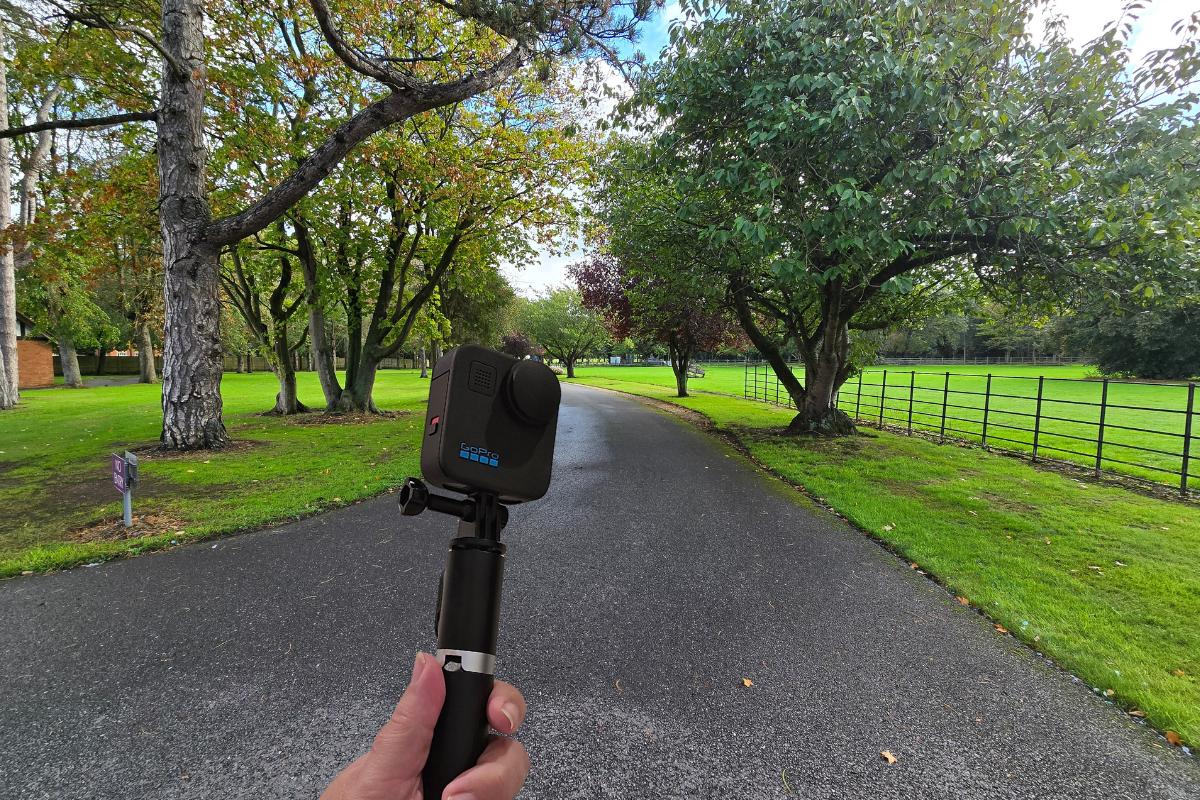
You bought a GoPro. You have seen the amazing videos people make with them. They jump out of planes or dive with sharks, and it looks incredible. Now, you want to make videos like that for your own channel. But when you turn the camera on, it can feel a bit confusing. There are so many settings and buttons.
Do not worry. You do not need to be a professional filmmaker to get great shots. You just need to know a few simple tricks.
This guide will help you set up your camera and start filming. We will look at the best settings, how to keep your footage steady, and how to edit your videos quickly. By the end, you will be ready to create content that your followers will love.

Get to Know Your Camera Settings
The first thing you need to do is change a few settings. The default settings on a GoPro are okay, but they are not always the best for social media.
Most action cameras have a “Pro” mode. On a GoPro, this is called Protune. It lets you control things like colour and light. You can find out exactly how to access these controls on the official GoPro help page.
Here are the main settings you should look at:
Resolution and Frame Rate
Resolution is how clear your video looks. Frame rate is how smooth it is.
- Resolution: Set this to 4K or 5.3K if you can. This gives you the best quality. Even if you upload in 1080p later, starting with high quality is better.
- Frame Rate: For normal talking videos, use 30 frames per second (fps) (or 25 fps in the UK). If you want to do slow motion later, shoot in 60 fps or 120 fps.
Aspect Ratio
This is the shape of your video.
- 16:9: This is the standard wide rectangle shape. It is perfect for YouTube videos.
- 8:7 or 4:3: These are taller shapes. They are great if you want to crop your video later for Instagram Reels or TikTok. Shooting in 8:7 gives you the most room to work with.
Colour Profiles
Your camera captures colour in different ways.
- Vibrant: This makes colours pop. The grass looks greener and the sky looks bluer. It is great if you do not want to edit much later.
- Natural: This looks more like what your eyes see.
- Flat: This looks grey and boring at first. But it captures the most detail. Professionals use this because they can add their own colours when they edit. If you are new, stick to Natural or Vibrant.
ISO and Shutter Speed
These control light.
- ISO: This makes the video brighter but can make it look grainy. Keep the ISO Max to 1600 or lower. This keeps your video clean.
- Shutter Speed: Leave this on Auto for now. It is easier when you are moving around.
Keep Your Footage Steady with HyperSmooth
One of the best things about a GoPro is the stabilisation. It is called HyperSmooth. It makes bumpy videos look smooth, like you are floating.
If you are walking, running, or holding the camera, make sure HyperSmooth is turned On.
There are different levels:
- Standard: Good for most activities.
- High/Boost: Use this only if things are very bumpy, like mountain biking. It zooms in a little bit, so you lose some of the edges of your shot.
Pro Tip: If you are vlogging and walking, try to hold the camera steady with your arm. Do not rely only on the camera. Walk with bent knees to absorb the shock. It looks funny, but it works.
Lighting is Everything
A GoPro loves light. It has a small sensor, which means it struggles in the dark. If you film indoors at night, your video might look fuzzy.
Here is how to get the best light:
- Film Outside: Sunlight is your best friend. The best time to film is early in the morning or late in the afternoon. This is called “Golden Hour.” The light is soft and makes skin look great.
- Face the Light: If the sun is behind you, your face will be dark. Turn around so the sun is shining on your face.
- Use Artificial Light: If you are inside, turn on all the lamps. You can also buy a small LED light that attaches to your camera. GoPro sells a Light Mod that is very useful.
Improve Your Audio
Bad sound ruins good video. If people cannot hear you, they will scroll past.
GoPros have microphones built in, but they can pick up wind noise. Here is how to fix it:
- Wind Reduction: In your settings, you can turn on Wind Reduction. Set it to Auto. The camera will listen for wind and try to block it out.
- Get Closer: The closer you are to the camera, the better you will sound. Try to stay within an arm’s length.
- Use an External Mic: This is the best way to get pro audio. You can use the Media Mod, which has a better microphone built in. It also lets you plug in other microphones. This is a great investment for vloggers.
Framing Your Shots for Social Media
Social media apps like TikTok and Instagram use vertical video (9:16). YouTube uses horizontal video (16:9). It can be hard to film for both.
Shoot Vertical
If you know you are only making a TikTok, turn your GoPro sideways. This films a vertical video natively. It saves you time editing later.
Shoot Wide and Crop
If you want to use the video for everything, shoot in 8:7 aspect ratio. This is almost a square. Later, you can crop the middle for TikTok and the full width for YouTube.
The Quik app from GoPro makes this easy. You can choose different shapes for your video after you film. You can find the app on the GoPro store.
The Rule of Thirds
Imagine a grid on your screen with nine boxes. Try to put your eyes or the main subject on one of the lines where the boxes meet. This looks more interesting than putting everything in the dead centre. You can turn on “Grid Lines” in your settings to help you practice.
Editing Your Content
Editing is where the magic happens. You do not need a big computer to do it.
The Quik App
GoPro has an app called Quik. It connects to your camera and downloads your videos to your phone.
- Auto Highlights: The app can look at your footage and make a video for you. It picks the best parts and syncs them to music. This is great for a quick recap of your day. You can learn more about how Auto Highlights work on the GoPro community page.
- Manual Editing: You can also trim clips, add filters, and change the speed. Speeding up a boring part (time-lapse) is a fun way to show a journey.
Keep it Short
For social media, shorter is better.
- YouTube Shorts: These can be up to 60 seconds long. If you make it longer, it becomes a normal video. Google has a guide on creating Shorts that explains the rules.
- TikTok/Reels: Aim for 15 to 30 seconds. Grab the viewer’s attention in the first 3 seconds. If you don’t, they will swipe away.
Tells a Story
The most important tip is to tell a story. Pretty shots are nice, but a story keeps people watching.
A simple story has three parts:
- Beginning: Show where you are and what you are doing. “Hi guys, today we are hiking up this mountain.”
- Middle: Show the action. The climb, the sweat, the funny moments. Show the view from the top.
- End: Wrap it up. “We made it back down. Thanks for watching.”
Even a 15-second video can have a story. Start with a question and answer it by the end.
Practice Makes Perfect
Do not expect your first video to be perfect. It takes time to learn. The more you use your camera, the better you will get.
Try filming different things. Film your dog, your walk to the shops, or your cooking. Play with the settings. See what happens when you change the frame rate or the view.
Watch other influencers. See what angles they use. Try to copy a shot you like. This is a great way to learn.
Most importantly, have fun. If you are enjoying yourself, your viewers will enjoy it too.
Frequently Asked Questions
Do I need the newest GoPro model to be an influencer?
No. Older models are still very good. A Hero 9, 10, or 11 can film in 4K and has great stabilisation. The newer models have better battery life and some extra features, but you can make great content with an older camera. Content is more about the story than the gear.
How do I stop my battery from dying so fast?
Batteries drain quickly when filming in high quality. Here are some tips:
- Turn off the camera when you are not filming.
- Turn off voice control and GPS if you are not using them.
- Lower your screen brightness.
- Carry spare batteries. It is always good to have at least two.
- Keep batteries warm in winter. Cold kills batteries fast. Put them in your pocket near your body heat.
Can I use my GoPro for live streaming?
Yes. You can live stream directly from the GoPro app to Facebook, YouTube, and Twitch. You need a good Wi-Fi signal or a hotspot from your phone. It is a fun way to connect with your followers in real time.
What accessories should I buy first?
You do not need everything at once. Start with these:
- A short pole or grip: This makes it easier to hold the camera and film yourself.
- A spare battery: Essential for long days.
- A large SD card: Get a card with at least 128GB of space so you do not run out of room.
- The Media Mod (Optional): Good if you want better audio later on.
Why do my videos look grainy?
This usually happens because there is not enough light. GoPros need bright light to look their best. If you are indoors, try to add more lamps. If you are outside, check your ISO Max setting. If it is set too high (like 3200 or 6400), the camera adds grain to try and see in the dark. Lower it to 1600.